SalamAI Meeting Summaries, Transcripts & PDF Downloads

Beyond the session

Recordings, transcripts
and session summaries.

SalamAI can save transcripts and create summaries for supported sessions. Get the key points, decisions and tasks after a meeting or event. You can also offer listeners a PDF summary or transcript.

In short

What can you keep after a translated session?

Updated

When saving is enabled, SalamAI can keep encrypted recordings and readable transcripts for supported talks. Rec & Transcripts groups files by Hall and Talk, with date/time, Minimum length and Show tests filters. Download all bundles the transcripts into a ZIP. Download all with audio includes recordings as well. Use the Sessions tab to review individual translation sessions. Supported summaries are optional. Listener documents are prepared when the organiser chooses End and send, not after a test, and can be offered in each listener’s Companion language. High privacy saves no conversation content, and standalone Transcribe only does not generate summaries.

How do listeners get their notes?

Enable listener documents before Start. Send every listener the summary offers automatic on-phone summaries to admitted listeners in their Companion language; turning it off leaves summaries to requests. The organiser chooses End and send to prepare documents, subject to any review. The Summary window groups them by talk. Downloads and optional verified email can cover the whole talk, including speech before a listener joined; copies already delivered cannot be recalled.

What is in Download all?

Download all contains the talk’s available Markdown transcripts and SRT subtitles. Choose Download all with audio to include recordings in the ZIP, or download files individually.

Read nextLive presentation captions & transcription →Translation privacy & security →

Saved session content

Save transcripts, recordings and summaries.

01

Save encrypted transcripts in Sessions

Use Rec & Transcripts → Sessions to review what ran, by language. When transcript saving is enabled, you can view, search, copy or delete your own saved text. The browser encrypts saved transcripts before upload.

02

Save subtitles and readable text

Turn on SRT subtitle files, Markdown text transcripts or both. Find them in Rec & Transcripts by Hall, Talk and language, with original or translated text where available. Files are encrypted before upload. Access follows account or campaign rules. Long sessions may create numbered files.

03

Summarise decisions and tasks

Supported sessions can create an optional summary in your selected languages. Request it, then copy or download the result. The transcript is processed when you request a summary. Sharing it with the audience is a separate choice.

04

Offer listeners a PDF

When listener documents are enabled, automatic summaries can be offered to every admitted listener in their Companion language. Choose End and send to prepare documents for an ended talk. Stop alone closes a test and sends nothing. Listeners can view or download ready PDFs, or request email to their confirmed address. This is separate from showing a summary on the audience page.

05

Find every talk by name

In Rec & Transcripts → Talks, use quick date ranges or open More filters for date, time and Minimum length. Show tests includes rehearsals. Download all bundles transcript files. Download all with audio bundles the transcripts and recordings together. Individual downloads are also available.

Inside SalamAI

Find the files for each talk.

Filter by time, minimum length and tests. Choose a transcript ZIP, a ZIP with recordings, or individual files.

Rec & Transcripts grouped by fictional Hall and Talk, with Talks and Sessions tabs, Show tests and separate download options for transcripts and audio.
Find the files for each talk. Sample data

Listener documents

Offer a summary or transcript after an ended talk.

01

Turn on listener documents

Before Start, enable the Companion summary option and review its whole-talk capture and sharing notice. Where available, leave Send every listener the summary on for automatic on-phone summaries, or turn it off for requests only.

02

Let listeners find what they need

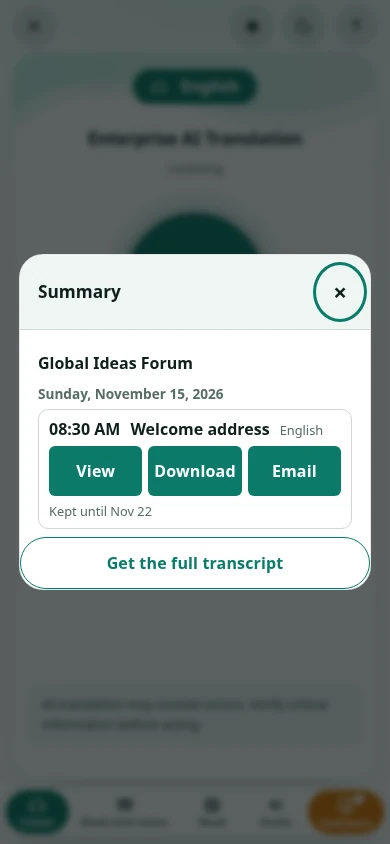
Admitted listeners find summaries in their Companion language, grouped by event, day and talk in Summary. They can view or download ready documents, request a full transcript, or ask for email delivery to an address they confirm.

03

End the talk and choose whether to send

Choose End and send to prepare permitted documents, subject to organiser review, access and retention limits. End, don’t send ends the talk without preparing them. High privacy does not offer these documents.

Reuse your setup

Back up your console settings.

01

A password-protected configuration backup

Export a password-protected backup of your console settings, languages, display options and audio devices. Keep the password safe. It can include Companion links, so a restore can bring eligible QR codes back. It does not include recordings or transcripts; access and expiry still apply.

02

Preview before restoring

Review a backup before applying it. Resolve missing devices on the new machine and reuse audience links where your access still permits.

Caption tools

Send captions to screens and other software.

01

Projection, caption windows and OBS

Show a language on a dedicated screen, use a minimal caption view, or create a token-protected OBS Browser Source overlay where enabled.

02

Live WebVTT feeds

Where enabled, share a live caption feed for a language and text track. WebVTT is a text format used by caption tools. Other software can request updates or receive them live. The host controls access and expiry.

Inside SalamAI

Find your summary by talk.

The Summary window groups ready documents by event, day and talk. View or download them on the phone, or request email delivery.

English Companion Summary folders for a fictional event and talk, with View, Download and Email controls.
Find your summary by talk. Sample data

Common questions

Summary and transcript questions

Does every transcription session create a summary?

No. Standalone Transcribe only sessions do not create summaries. To get both, choose a supported session with transcript capture and summaries enabled before starting.

Which files can I download?

Saved Markdown transcripts and SRT subtitles appear by talk. Download all bundles transcript files into a ZIP. Download all with audio includes recordings as well. You can also download files individually. Listener summaries and full transcripts are separate PDF documents, where enabled, prepared when the organiser chooses End and send.

Can a listener’s PDF include speech from before they joined?

Yes. Listener documents can cover the whole talk. The organiser must enable this sharing before Start. Downloaded files and emailed copies cannot be recalled.

Can I trust an AI summary without checking it?

Check important names, figures, decisions and deadlines against the transcript. AI summaries and translations can contain mistakes. Processing and document delivery may add charges.

Plan your event

Plan translation
for your next event.

Tell us your languages, audience size and audio setup. We’ll show you SalamAI live and suggest the right setup for your event.

Already have an account? Open the console →

SalamAI brochure

Get the SalamAI brochure.

Enter your email to receive the six-page PDF. You can also request a demo for your team.

Our email provider uses your details to send the brochure. The SalamAI team receives a copy of your request. We do not add you to a mailing list.

Download the PDF without email →